URL Shortener Admin Portal
A multi-tenant link management platform with three access levels — Super Admin, Admin, and Member — each with their own dashboard, permissions, and view of the system's short links.
Getting StartedOverview
The portal is built around a simple hierarchy: a Super Admin oversees the entire platform and every company on it, an Admin runs a single company's workspace and team, and a Member works inside that company creating and tracking their own short links. Every role signs in through the same login screen and lands on a dashboard tailored to what they're allowed to see and do.
Roles & Access at a Glance
| Role | Scope | Primary responsibility |
|---|---|---|
| Super Admin | Entire platform, all companies | Onboards new companies by inviting their first Admin, monitors every short link generated across all companies, and configures global site settings (logo, favicon, footer copyright). |
| Admin | A single company | Builds out their company's team by inviting additional Admins and Members, and can view every short link created by anyone in their company. |
| Member | Their own account, within a company | Creates short links and manages the links they personally created. |
Login & Account
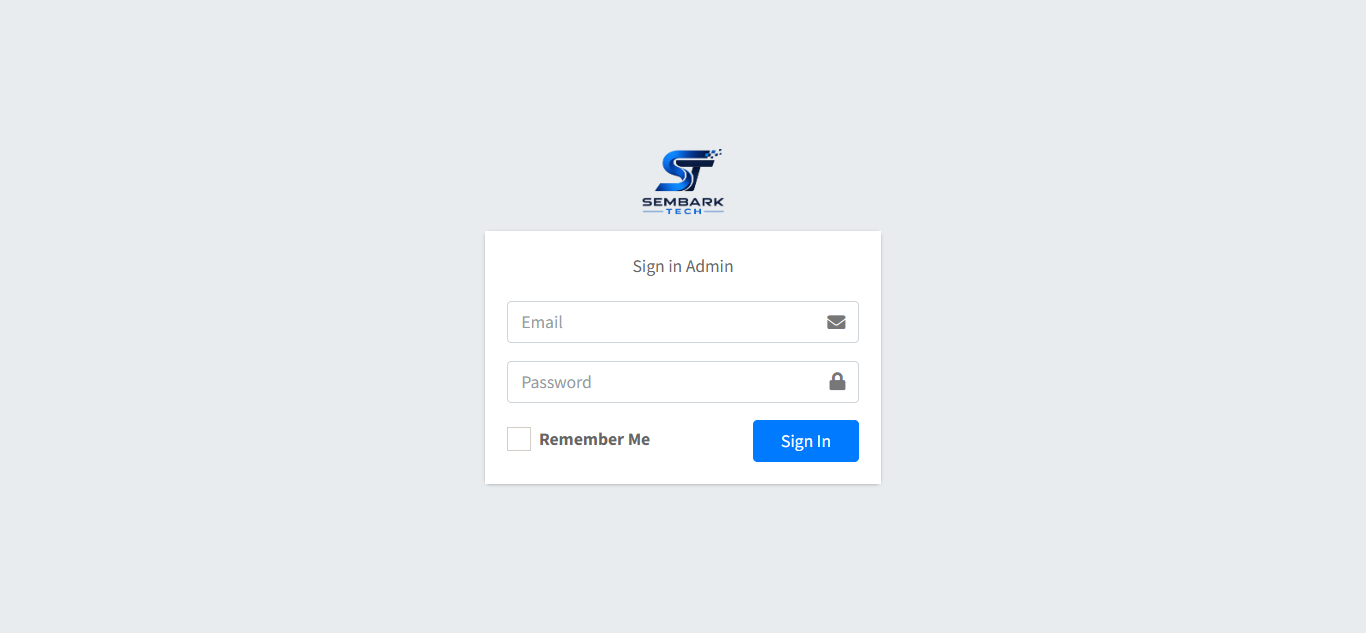
All three roles authenticate through one shared login page. After signing in, the system reads the account's role and routes the user to the matching dashboard. Every role also has access to a Profile page where they can review their account details and update their password.
Super AdminDashboard
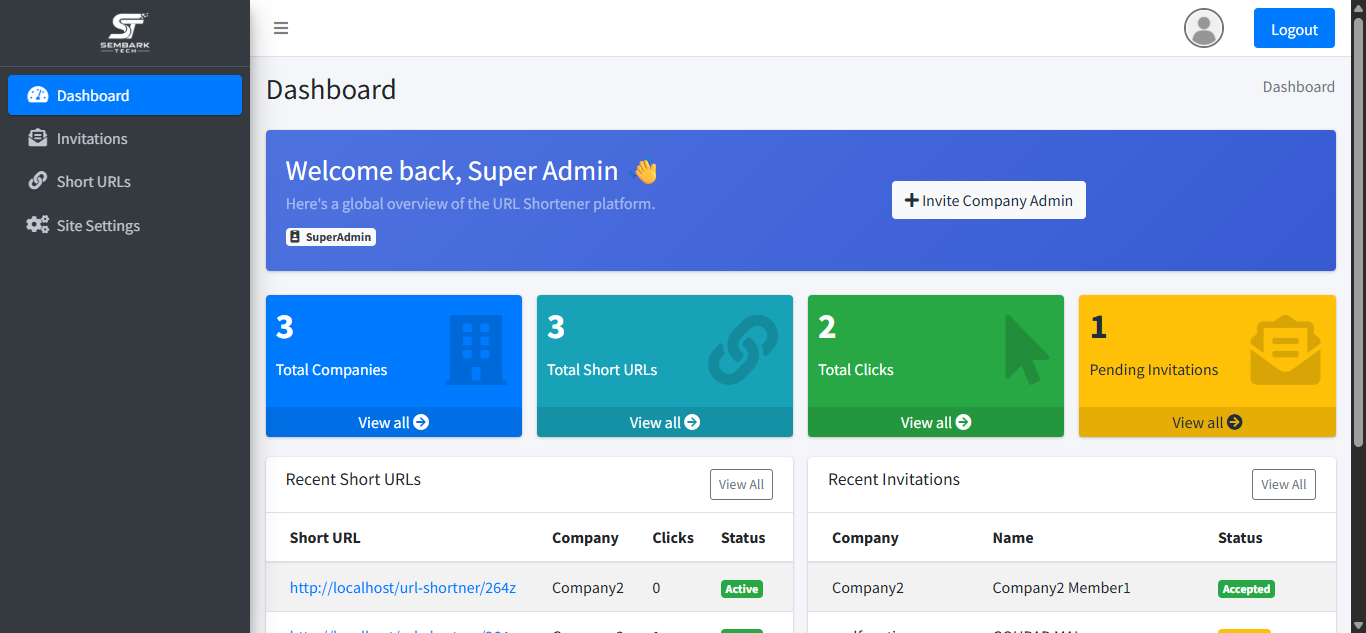
The Super Admin dashboard is the platform's control center. It gives a top-level, at-a-glance summary of activity across every company on the platform — total companies onboarded, total admins and members invited, and total short links generated — before drilling into any one area.
Company & Admin Invitations
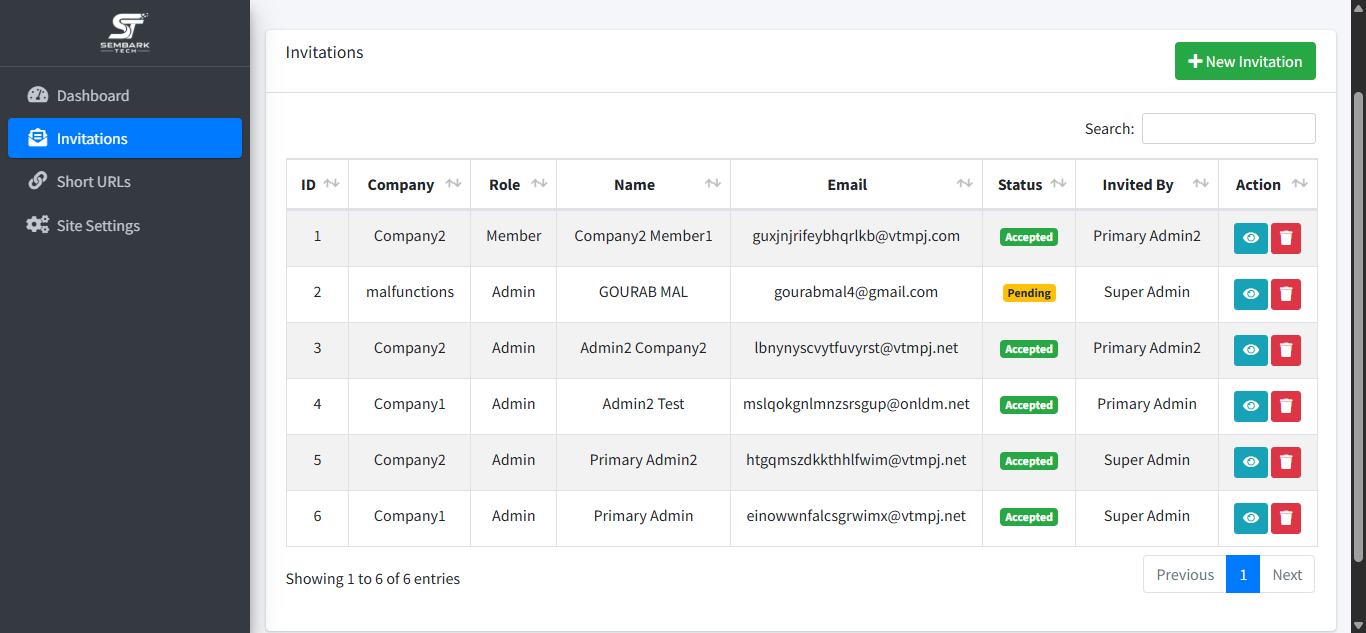
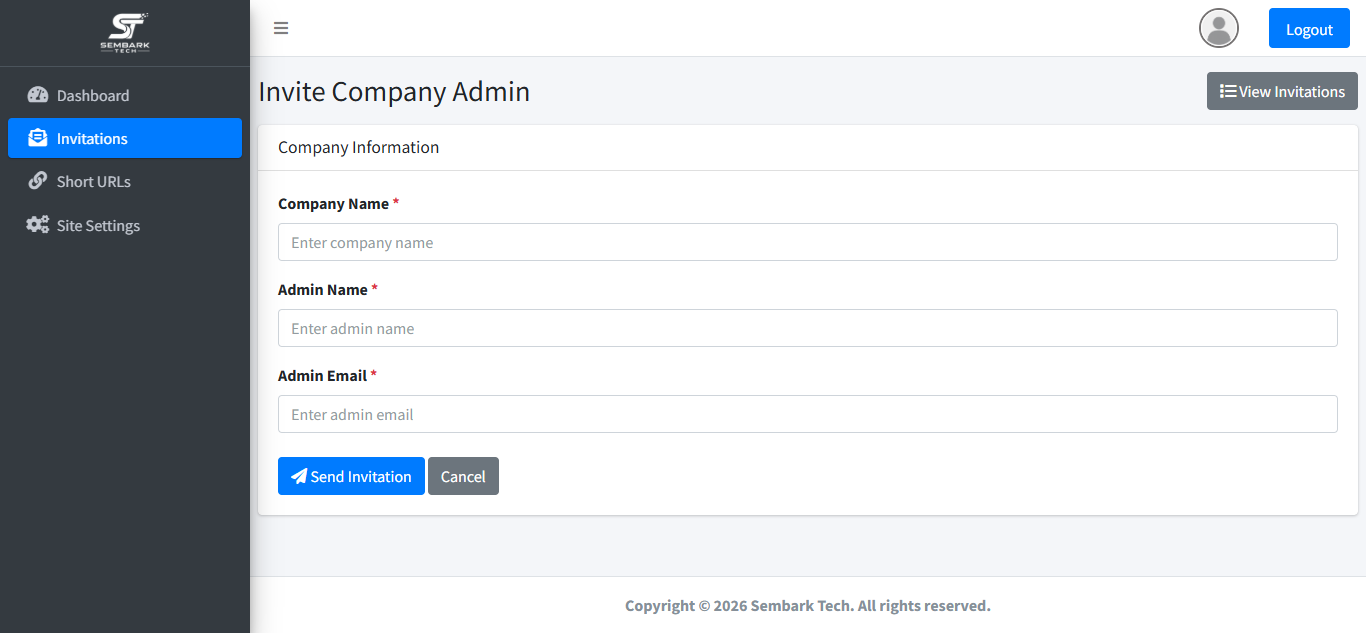
This is how new companies are onboarded. Rather than creating a company on its own, the Super Admin creates a company and invites its first (primary) Admin in a single action — the two are linked by design. Once the invitation is accepted, that Admin owns the new company's workspace and can start inviting their own team.
- Open Invitations from the Super Admin sidebar.
- Click Add / New Invitation.
- Enter the new company's details and the primary Admin's name and email.
- Send the invitation — the company record is created and the invite is emailed to the Admin.
- Track acceptance status from the invitations list.
Invitation Email & Account Setup
As soon as the Super Admin sends the invitation, the nominated company Admin receives an automated email at the address provided. The email contains a secure link inviting them to join the platform as the primary Admin for their company.
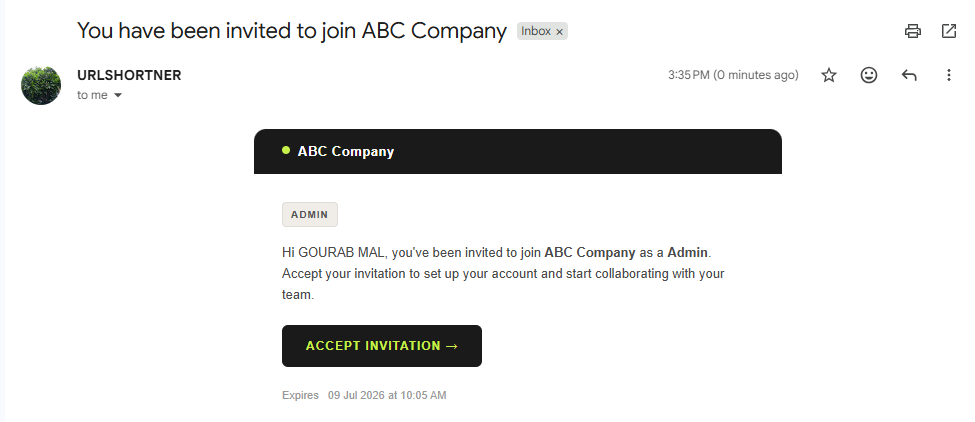
Clicking the link in the email takes the Admin to an Accept Invitation page where they confirm and accept their invitation to join the platform.
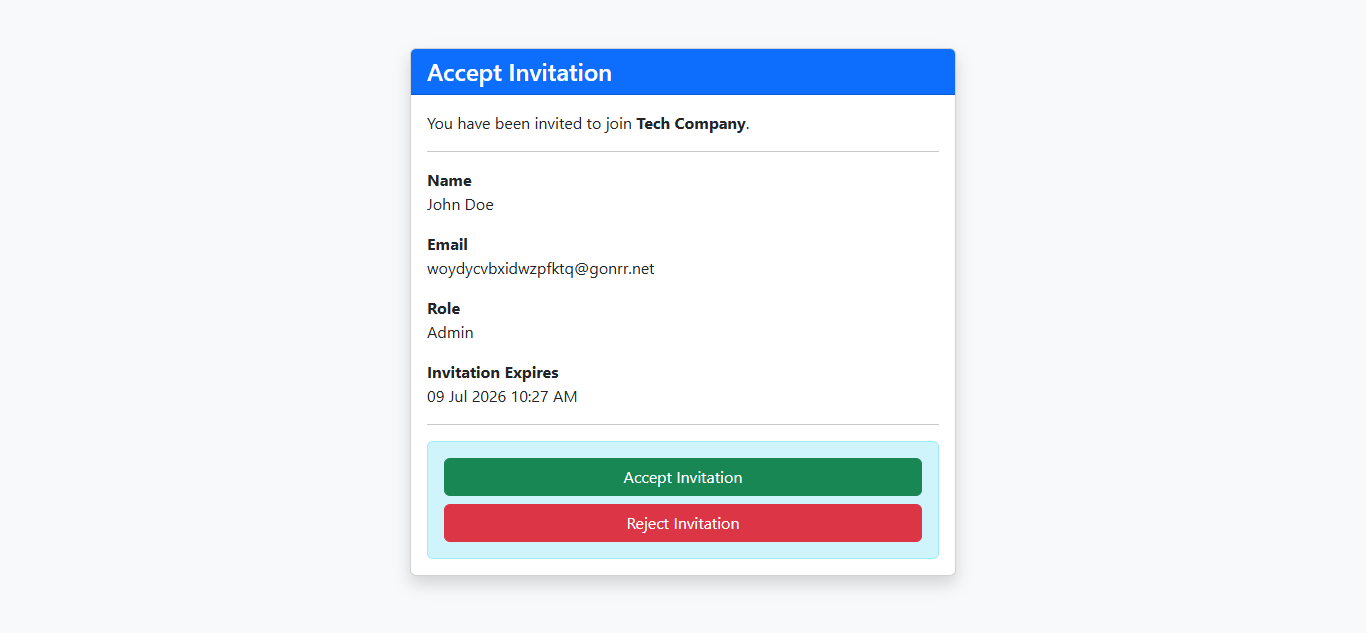
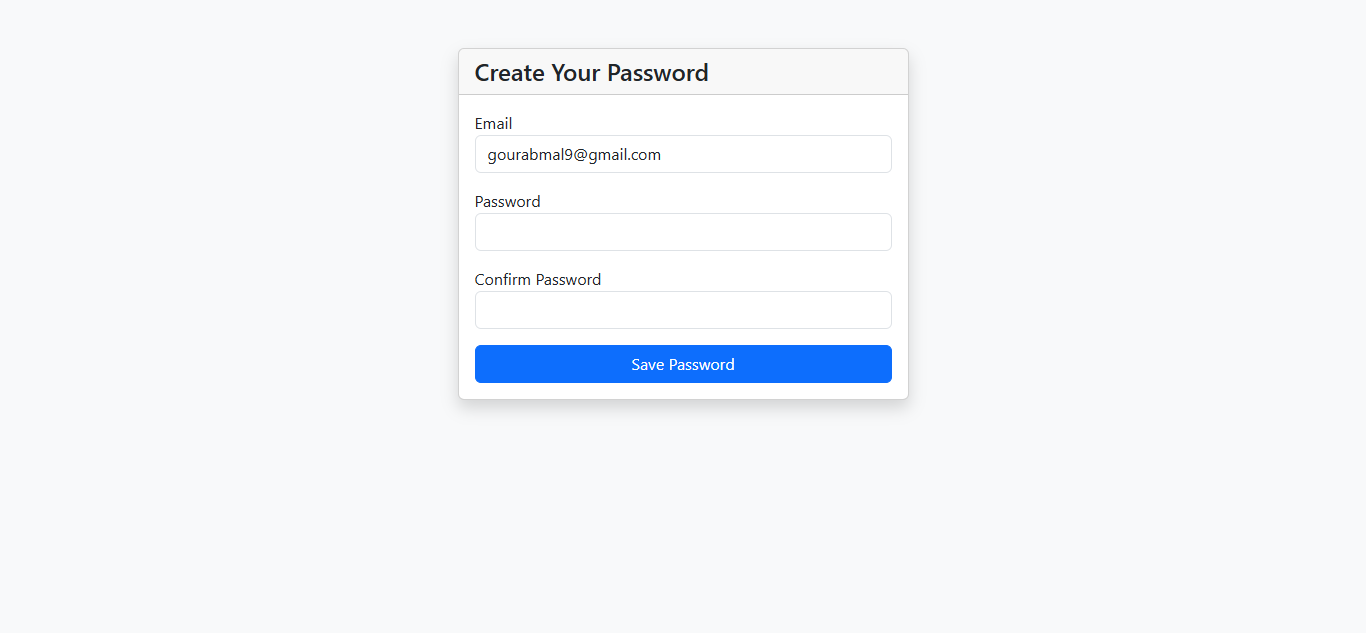
After accepting the invitation, they are directed to the Set Password page where they create their account password and complete registration.
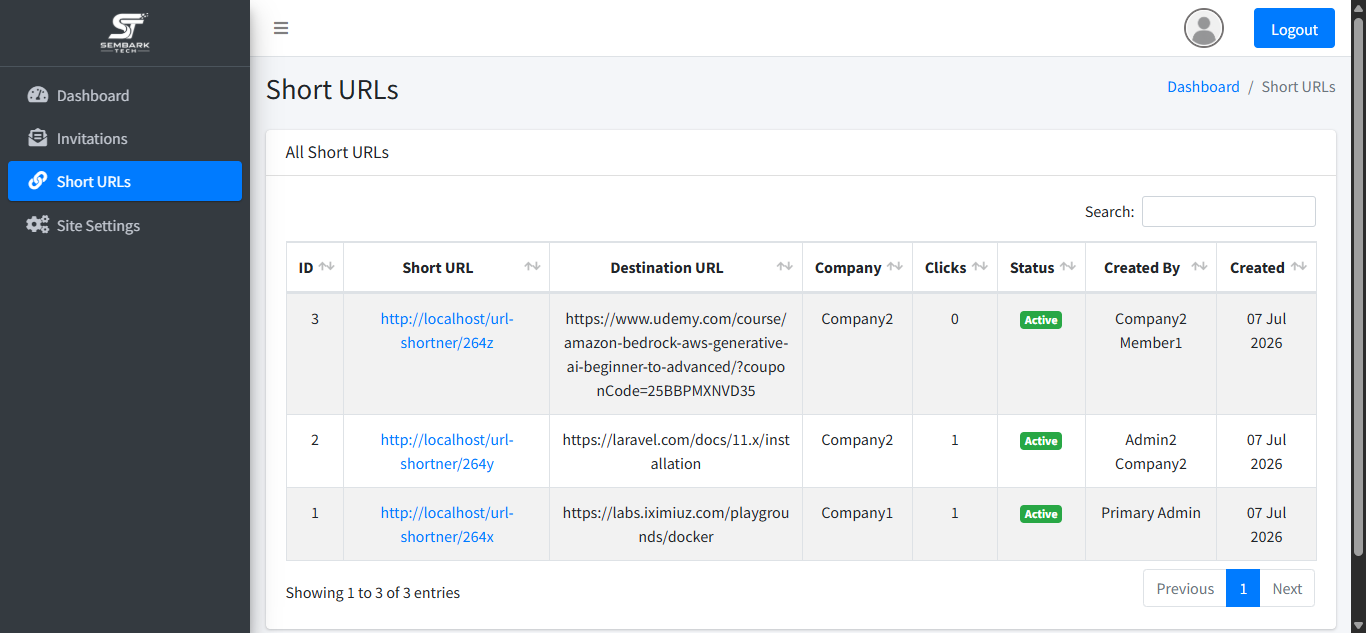
All Short Links
A consolidated, platform-wide list of every short URL created by any Admin or Member in any company. This gives the Super Admin oversight of link activity without needing to log into individual company accounts.
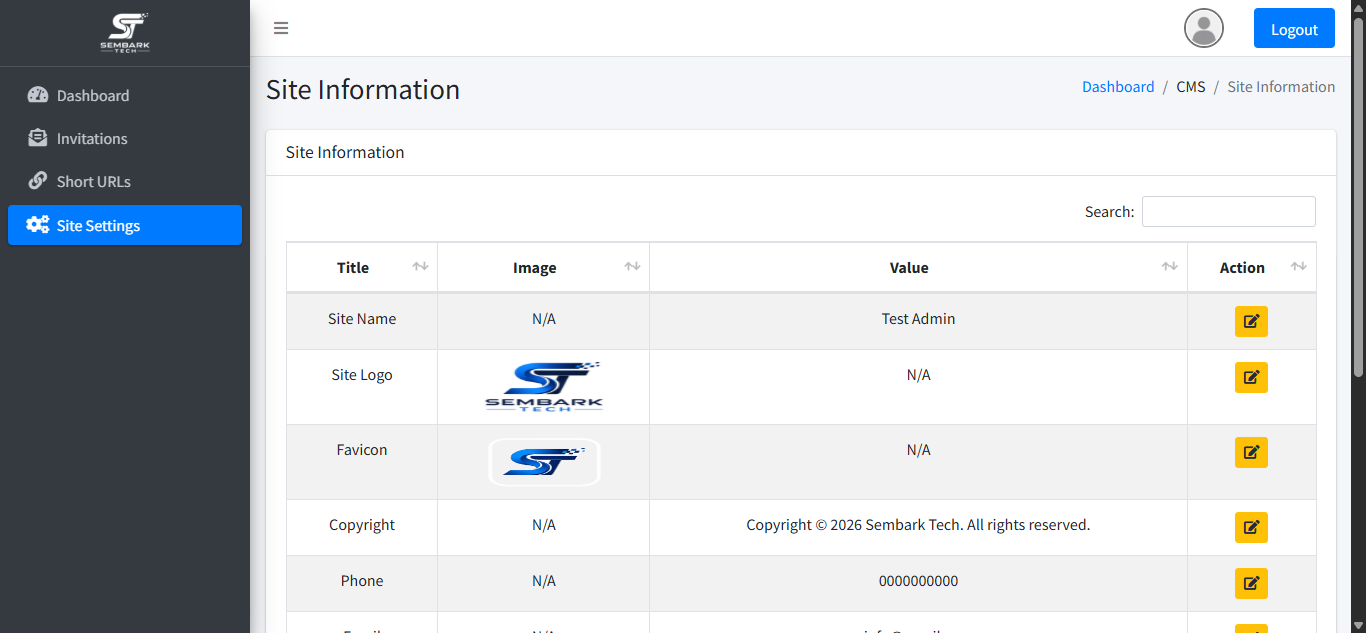
Site Settings
Global, platform-wide configuration that applies to every company's experience of the portal, including:
- Logo — the brand logo shown across the portal.
- Favicon — the browser tab icon.
- Footer copyright text — the copyright notice shown site-wide.
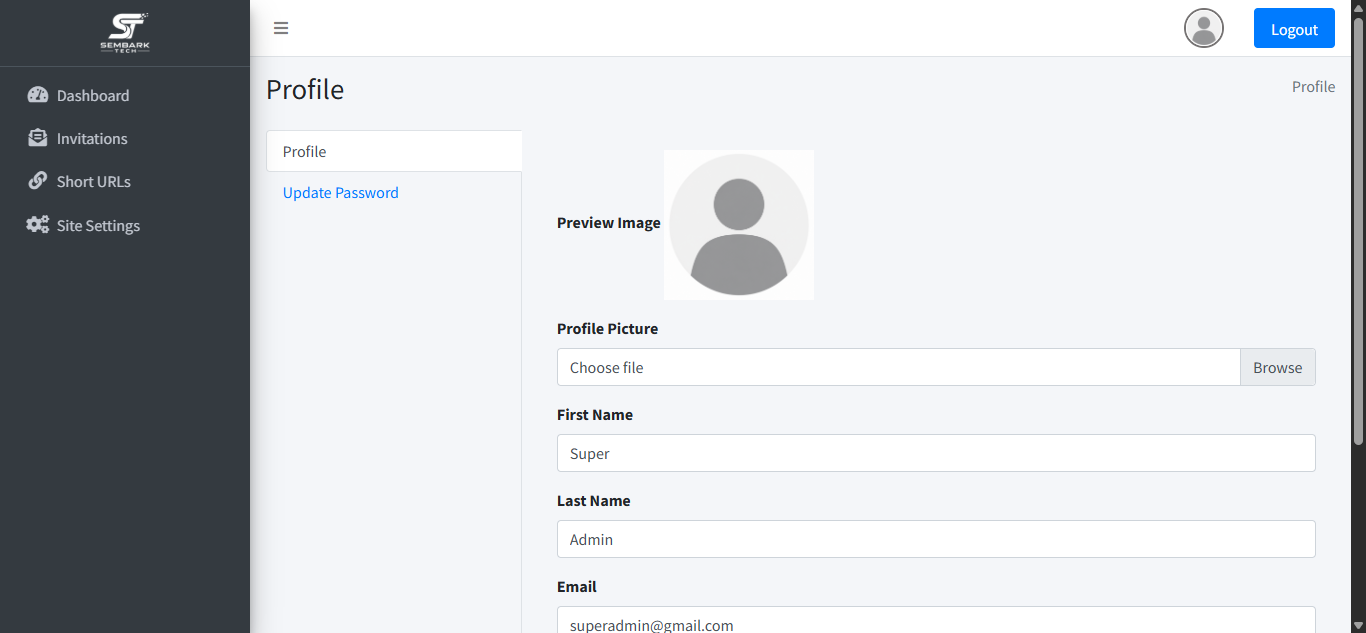
Profile & Password
Like every role, the Super Admin can view their profile details and update their account password from the Profile page.
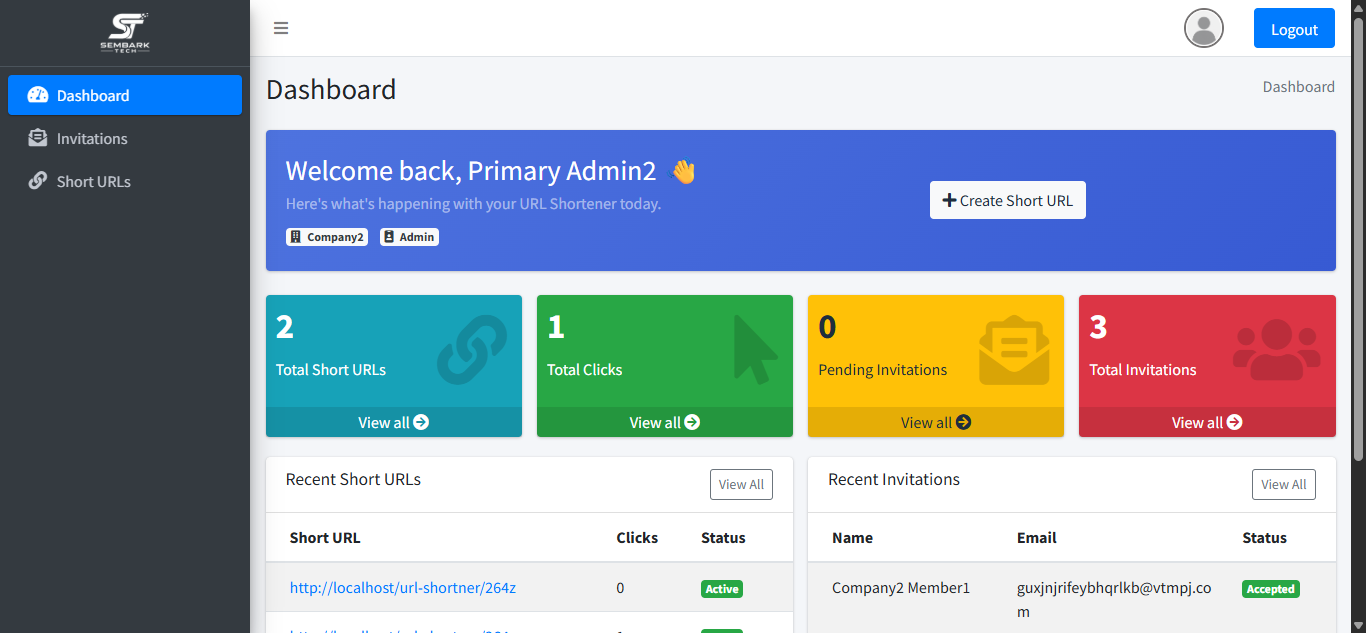
AdminDashboard
The Admin dashboard is scoped to a single company. It surfaces that company's team size and link activity, giving the Admin a quick summary of what's happening inside their own workspace.
Team Invitations
Admins grow their own company's team by inviting additional Admins and Members. Each invitation is sent by email and tracked until it's accepted.
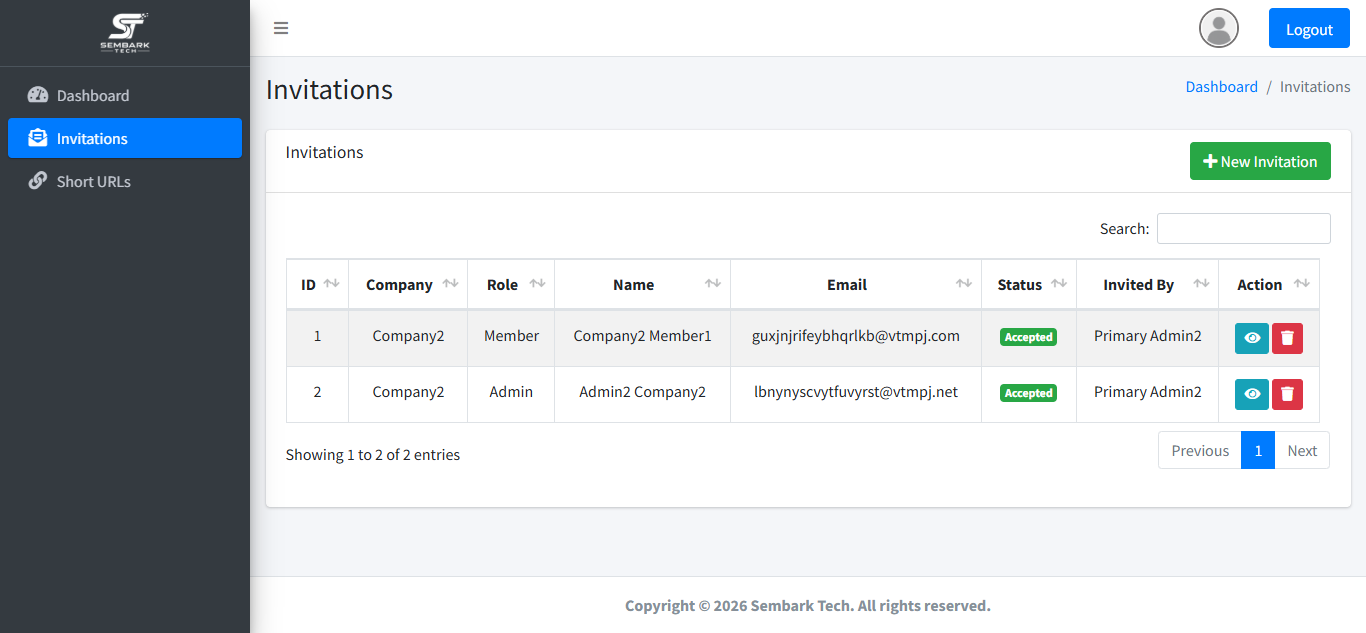
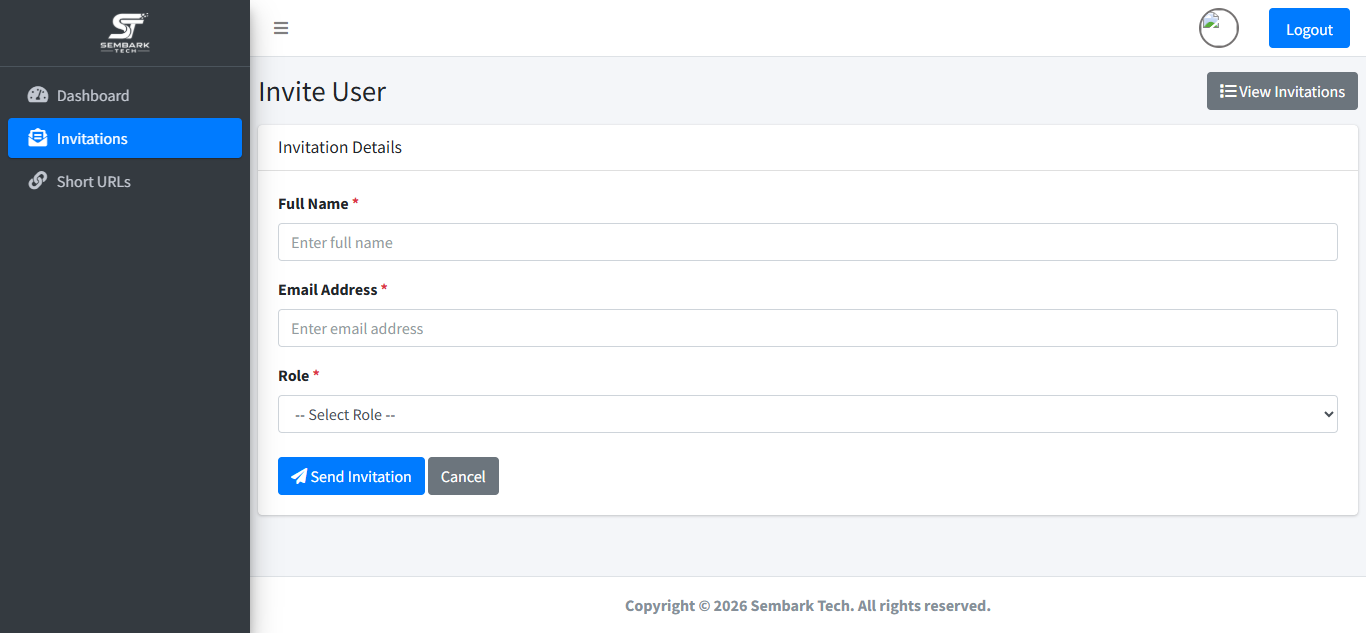
- Open Invitations from the Admin sidebar.
- Choose whether to invite an Admin or a Member.
- Enter their name and email address, then send.
- The invitee receives an invitation email with a link to set up their account.
- Track the invitation status from the invitations list until it is accepted.
Invitation Email & Account Setup
When an Admin sends an invitation, the recipient immediately receives an automated email at the address entered. The email contains a secure link prompting them to join the company as either an Admin or a Member, depending on the role selected.
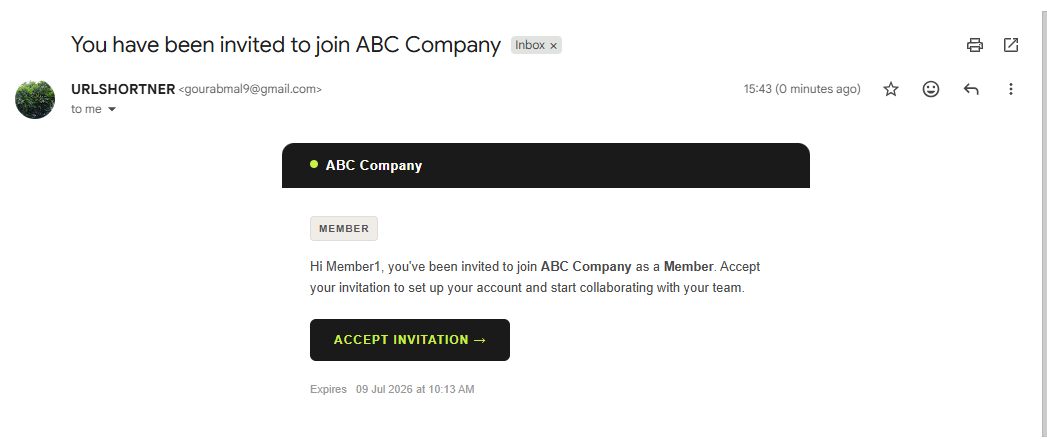
Clicking the link in the email takes the invitee to an Accept Invitation page where they confirm and accept their invitation to join the company.
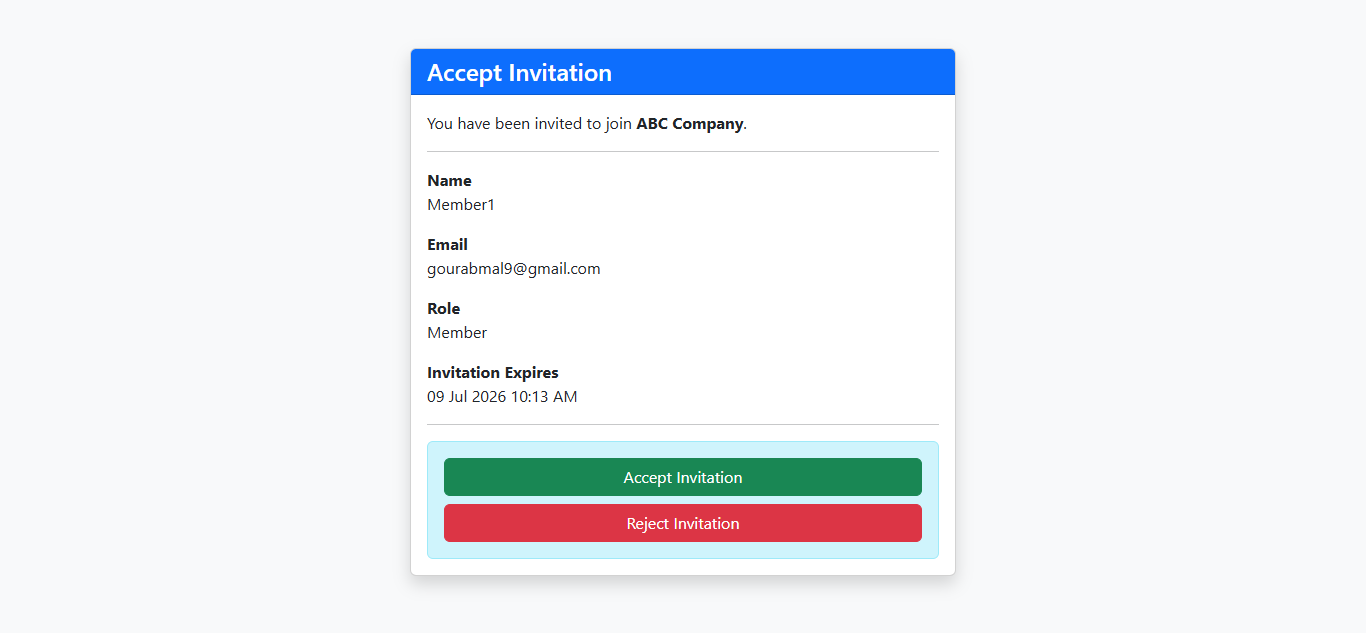
After accepting, they are directed to the Set Password page where they create their password and finalise their registration.
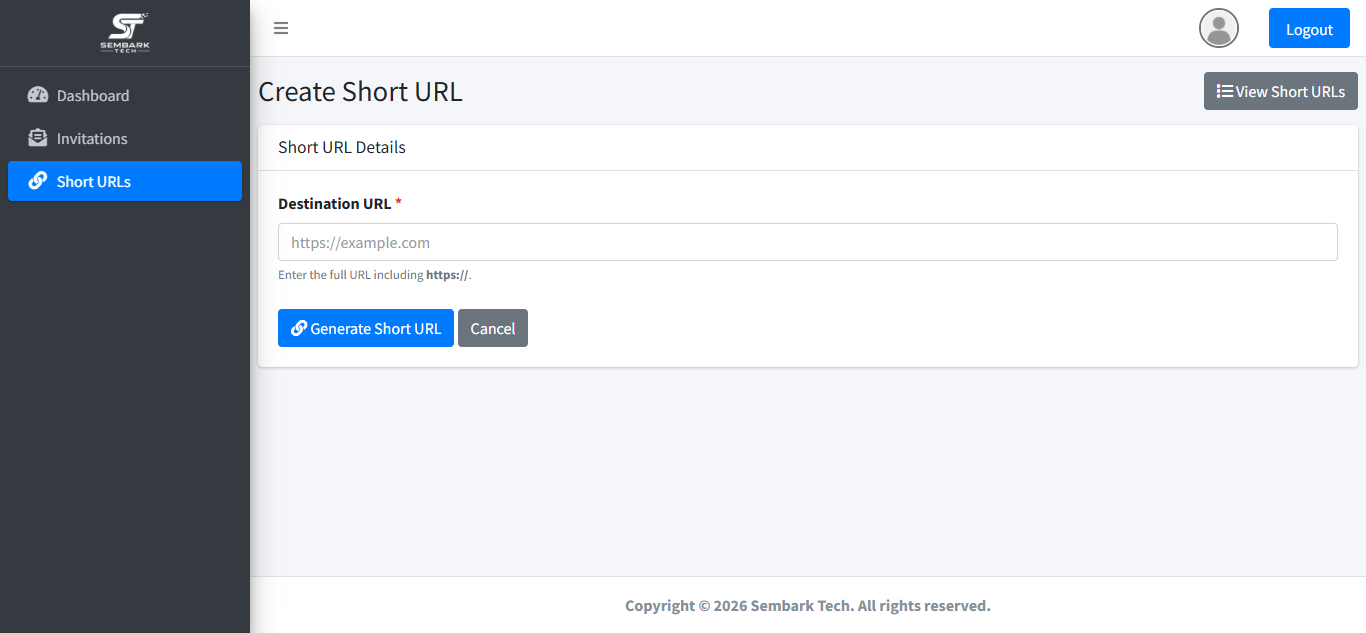
Create Short URL
Admins can generate short links for the company the same way a Member does — pasting in a long destination URL and generating a shortened version.
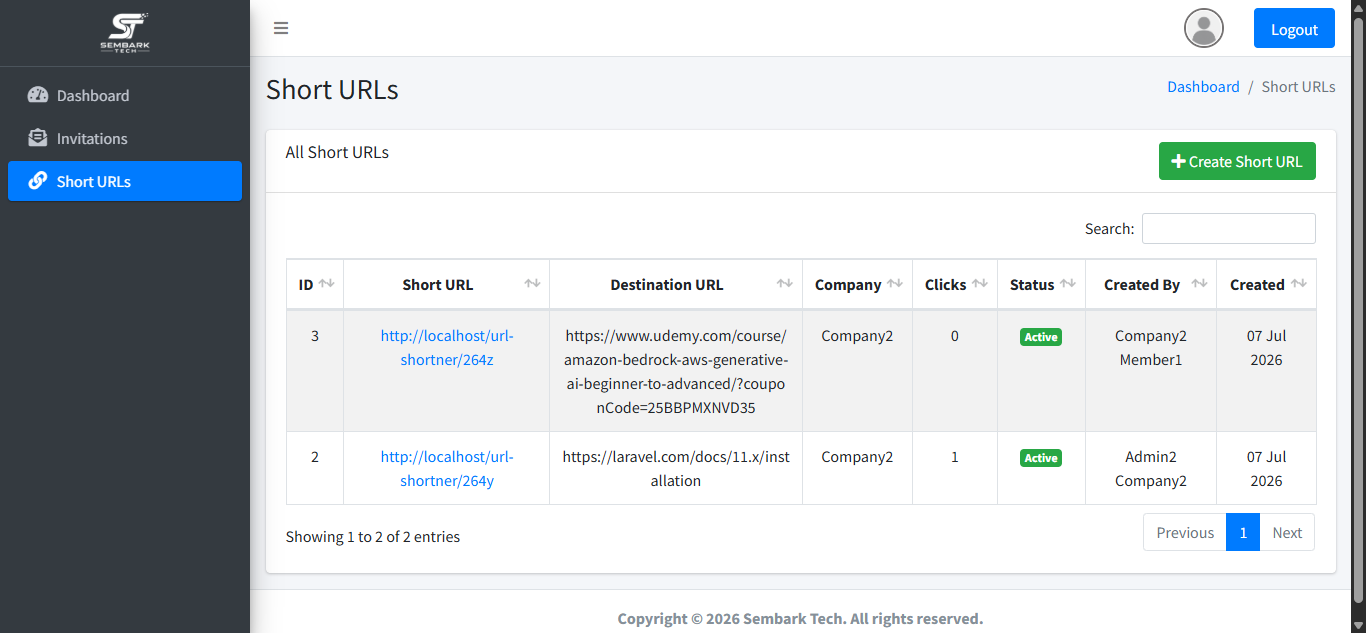
Company Links
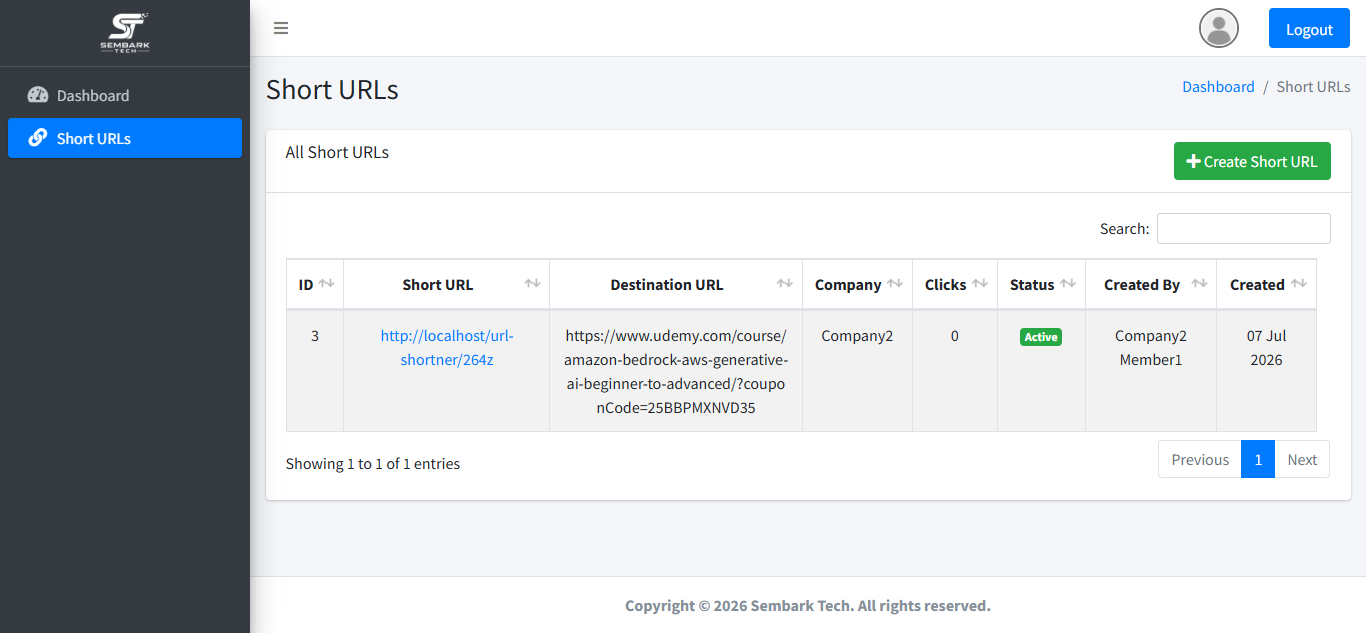
Unlike a Member, an Admin's link list isn't limited to links they personally created — it shows every short URL generated by anyone in their company, giving them oversight of their whole team's link activity.
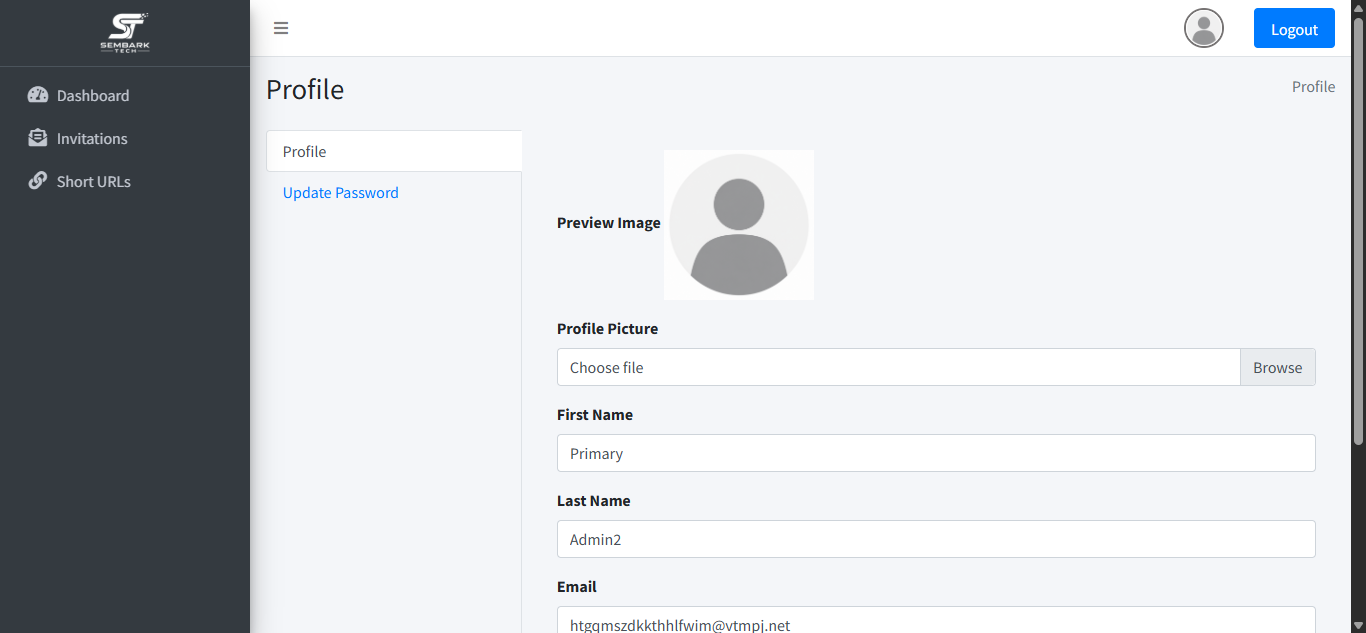
Profile & Password
Admins can view their account details and update their password from the Profile page.
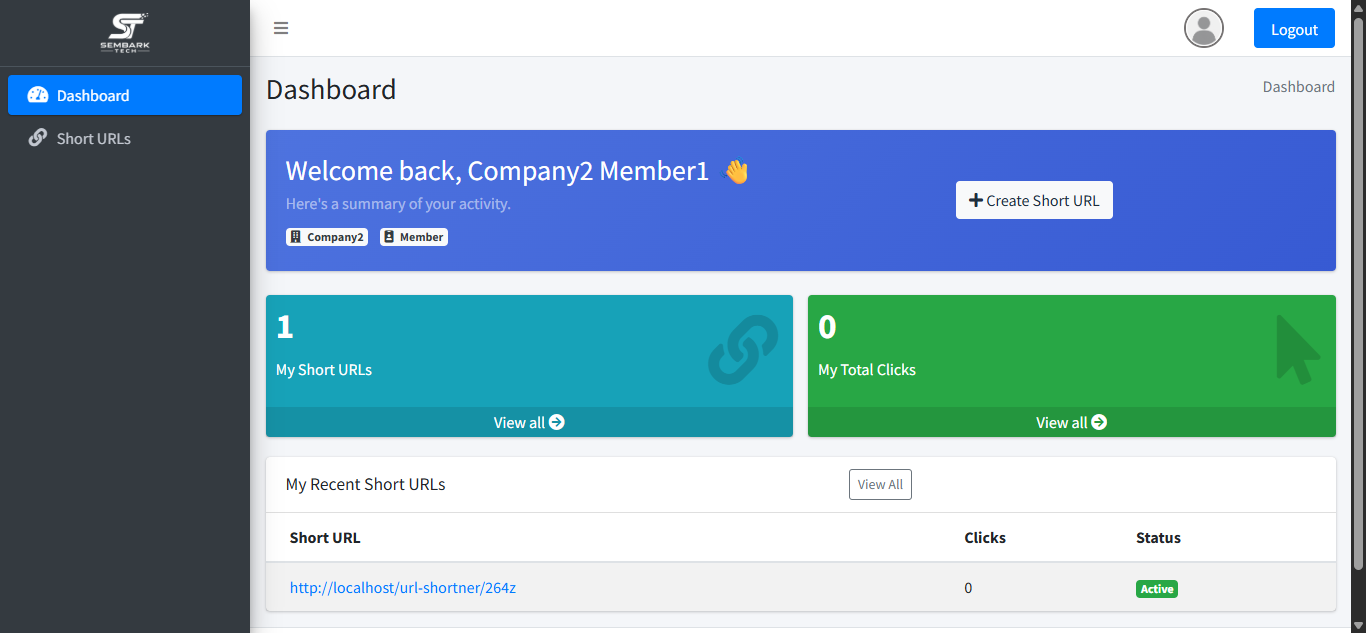
MemberDashboard
The Member dashboard is the most focused of the three, summarizing the Member's own link activity within the company they belong to.
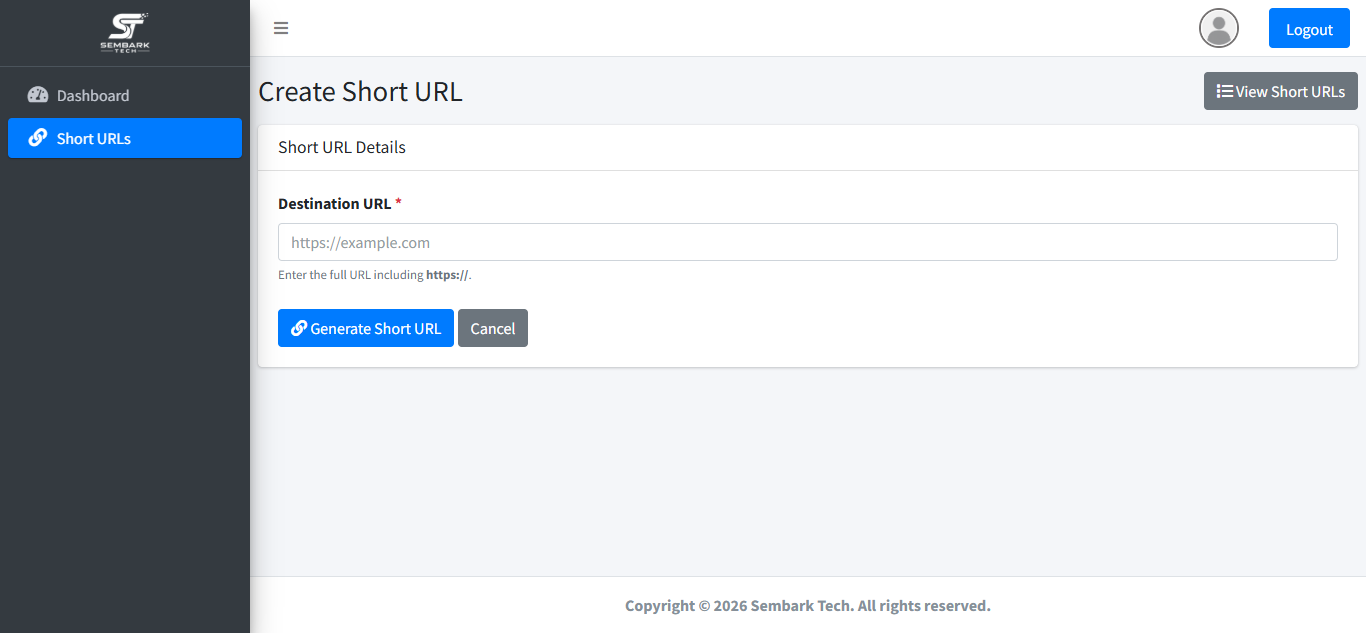
Create Short URL
Members generate their own short links by entering a long destination URL. The system returns a shortened link ready to share.
My Links
Members can view and manage only the short links they personally created — this list does not include links created by teammates or other Members.
ReferencePermission Matrix
| Capability | Super Admin | Admin | Member |
|---|---|---|---|
| Log in / manage own profile & password | ✔ | ✔ | ✔ |
| Create a company & invite its primary Admin | ✔ | — | — |
| Invite Admins / Members within a company | — | ✔ | — |
| Create short URLs | — | ✔ | ✔ |
| View own short URLs | — | ✔ | ✔ |
| View all short URLs in own company | — | ✔ | — |
| View all short URLs, all companies | ✔ | — | — |
| Manage global site settings (logo, favicon, footer) | ✔ | — | — |
ReferenceGlossary
| Term | Meaning |
|---|---|
| Company | A tenant workspace on the platform, created by a Super Admin invitation, containing its own Admins, Members, and short links. |
| Invitation | An emailed invite that creates a pending account for a new company/Admin (sent by Super Admin) or a new Admin/Member (sent by an Admin) until accepted. |
| Short URL | A shortened link generated from a long destination URL, owned by the Admin or Member who created it. |
| Site Settings | Global, platform-wide branding configuration: logo, favicon, and footer copyright text, managed only by the Super Admin. |